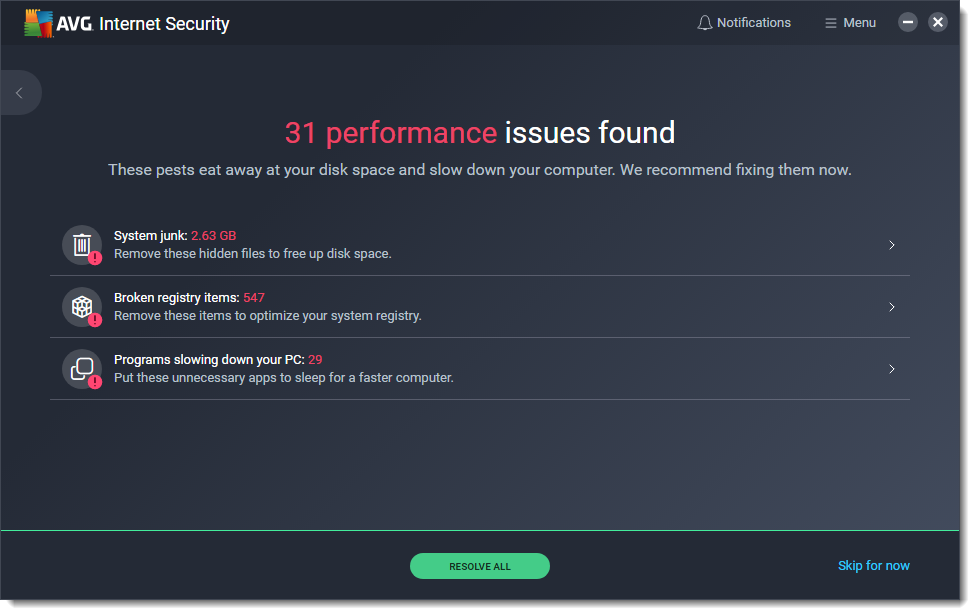
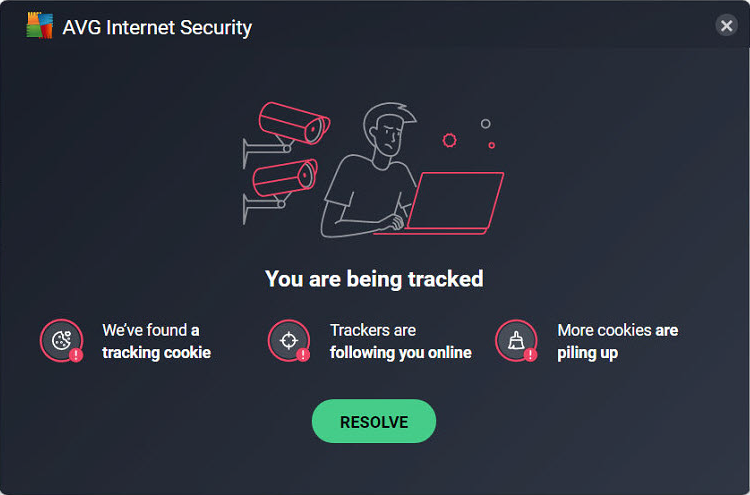
If you see any of the below messages offering to Tune up your PC, Fix common PC problems, Get a faster PC in one click, Hide me now or Upgrade to AVG Ultimate then my advice would be that you click the X button in the top right corner.
This is simply AVG and/or its partners advertising additional products such as PC TuneUp (which is a product I do not recommend you use as in my experience it causes more problems than it fixes!)
If you have the full AVG Internet Security supplied by me then the firewall and other components fully protect you online, and you do not need any more additional software to allow you to browse privately, hide your browsing or speed up your computer.
I do appreciate that sometimes some of these pop-ups can come across quite misleading or scary and have mentioned this to AVG as covered in my newsletters.
To reduce the amount of these annoying pop-ups as much as possible then follow the information at the bottom of this page.
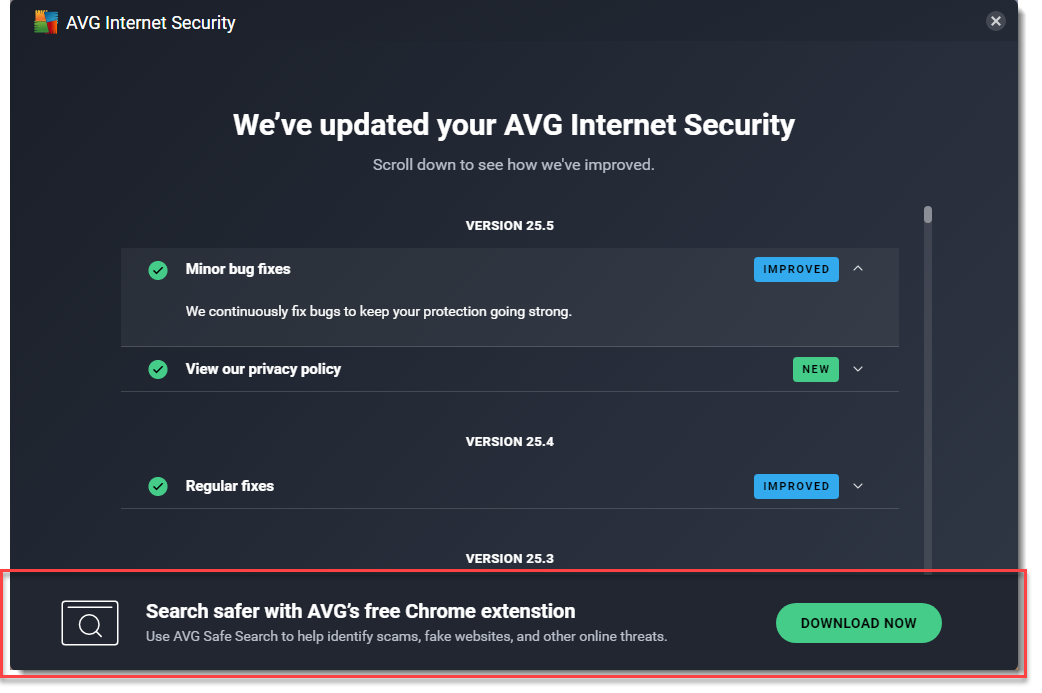
The below prompt often appears after an AVG update has been installed and suggests installing the AVG Safe Search extension for Google Chrome (or Microsoft Edge), my advice is not to install it as although it can be useful it changes the search engine in your browser so you no longer see the standard Google search page which can be annoying.
Reduce annoying AVG advertising pop-ups
Below are various steps you can take to reduce the amount of advertising pop-ups for upselling additional products you receive from AVG:-
Change notification settings
1)Open the AVG interface via the icon near the clock (or on the start menu)
2)Click Menu > Settings
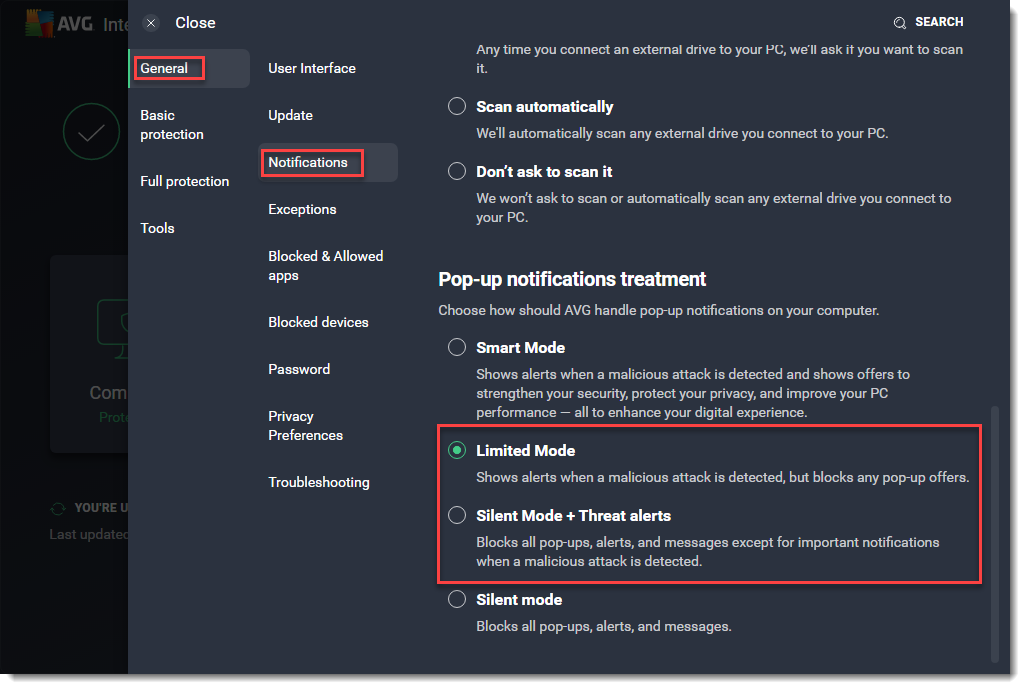
3)In the left hand pane select General > Notifications > and under Pop-up notifications treatment section select either Limited Mode or Silent Mode + Threat alerts
Doing this will not in any way lessen your protection, it will just ensure you only receive pop-up notifications when they are actually important threat related messages
4)Click Close in top left corner
5)Close the AVG interface by clicking the X in the top right corner
Disable automatic Smart Scans
Smart Scans is one of the main areas which automatically runs a scan on your computer and then based upon the results shows adverts relating to other products you could purchase (but don't need!)
You do not need to run this scan to ensure you are protected, AVG uses proactive and behavioural monitoring in the background to provide protection so is constantly checking files you open, websites you access, links you click, external drives you connect to ensure they are safe. A manual scan such as Smart Scan is not needed. The only time you need to run a manual scan would be if you connected a new external drive which you were unsure of and wanted to run a full scan, and to do this you would click Run Other Scans > File or Folder Scan or USB / DVD Scan from the main screen.
1)Open the AVG interface via the icon near the clock (or on the start menu)
2)Click Menu > Settings
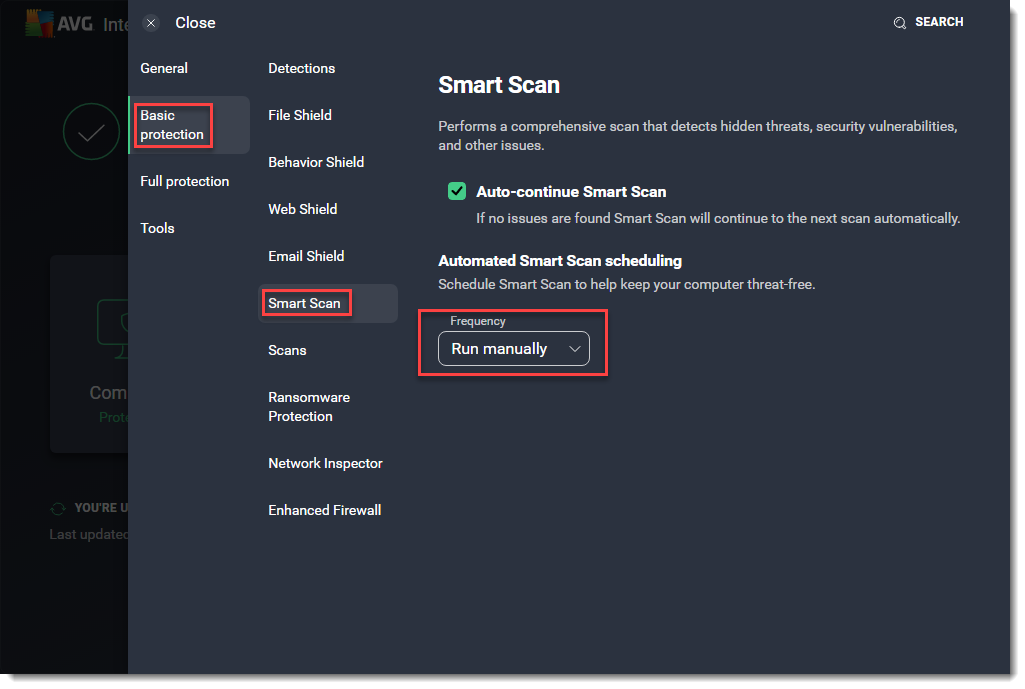
3)In the left hand pane select Basic protection > Smart Scan > and under Automated Smart Scan scheduling frequency select Run manually
4)Click Close in top left corner
5)Close the AVG interface by clicking the X in the top right corner