Follow the instructions below to install on other devices if you have purchased a multi-device license:
Android Phones / Tablets
N.B. Images below taken from Phone so may look slightly different when viewing on a Tablet
Follow relevant instructions below depending on whether installing on your device for the first time OR re-activating an existing version
More details can be found on Malwarebytes website here
Apple iPhone / iPad
N.B. Images below taken from iPhone so may look slightly different when viewing on an iPad
Follow relevant instructions below depending on whether installing on your device for the first time OR re-activating an existing version
Installing and configuring for the first time
1) If you don't already have Malwarebytes installed on your device then follow one of the steps below:
a) Click here on your device to download and install Malwarebytes - Mobile Security
b) Open the App Store on your iPhone/iPad, search for Malwarebytes and click Get > Install
c) Open Malwarebytes on your computer, click My subscription down left hand side, click Add device +, click iOS, scan the QR code with your camera to open App Store and click Get > Install
2) Open Malwarebytes - Mobile Security by tapping the icon on your home / app screen
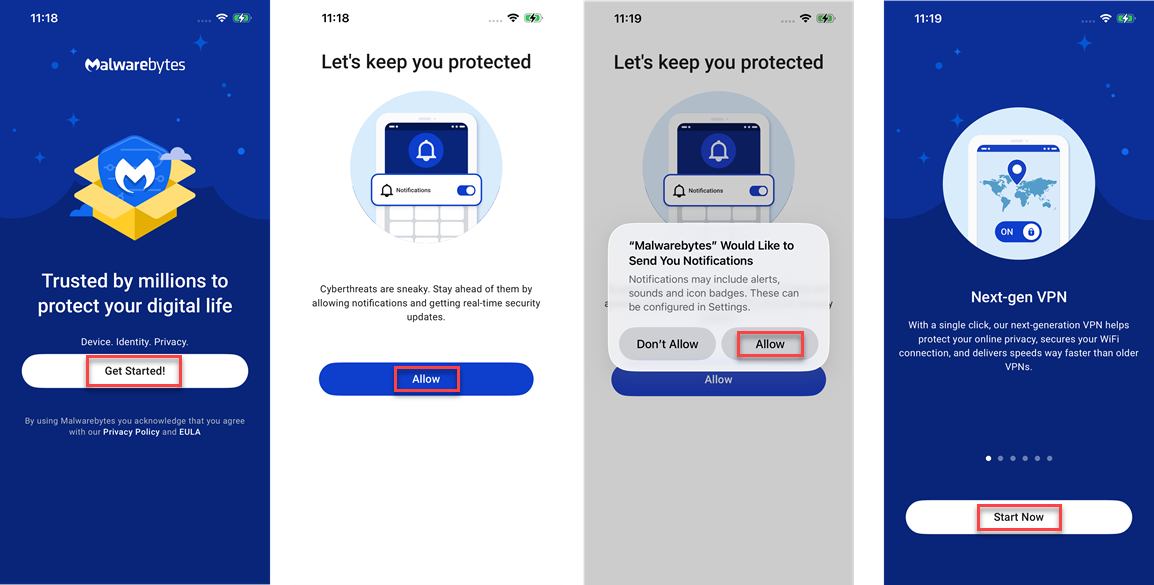
3) Click Get Started! > Allow > Allow > Start Now
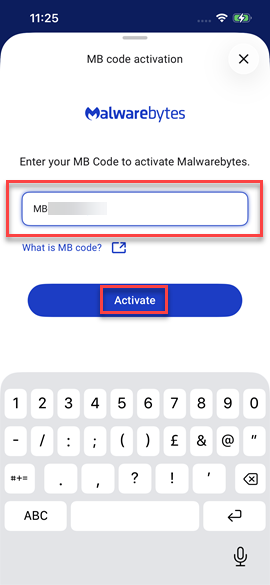
4) On the next screen you need to enter your MB Code
To obtain this code open Malwarebytes on your computer, click My subscription down left hand side, click Add device +, click iOS, click Next, and you will see your activation code, enter the code shown in the box below and click Activate
5) The main Malwarebytes interface will be shown as below
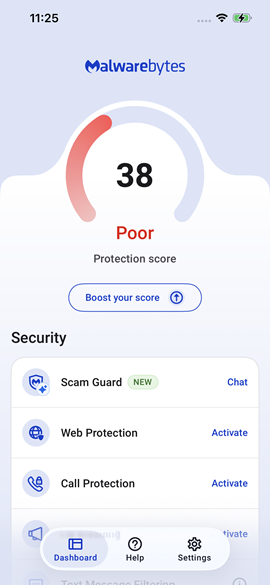
6) You can enable all the protection as follows
Web Protection:
a) Click Activate next to Web Protection and then click Activate again

b) Follow instructions shown on screen e.g.
Click icon shown below
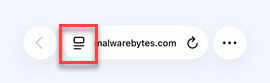
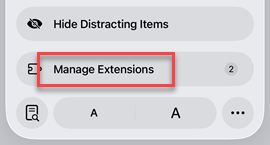
Click Manage Extensions
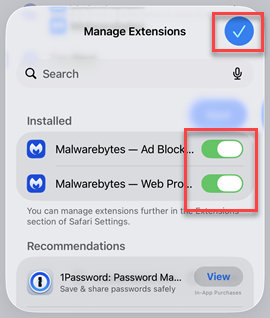
Enable both items using toggle buttons and then click blue tick button
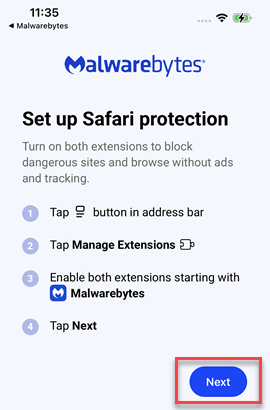
Click Next
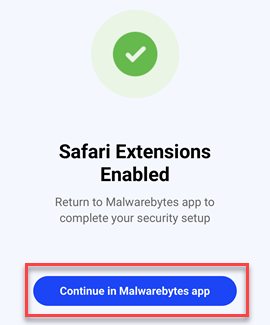
Click Continue in Malwarebytes app
Call Protection:
a) Click Activate next to Call Protection and then click Activate again

b) Click Go to Settings
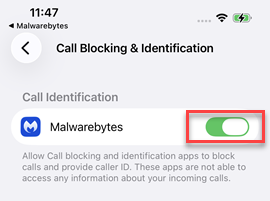
c) Enable using toggle button and then close settings by swiping up
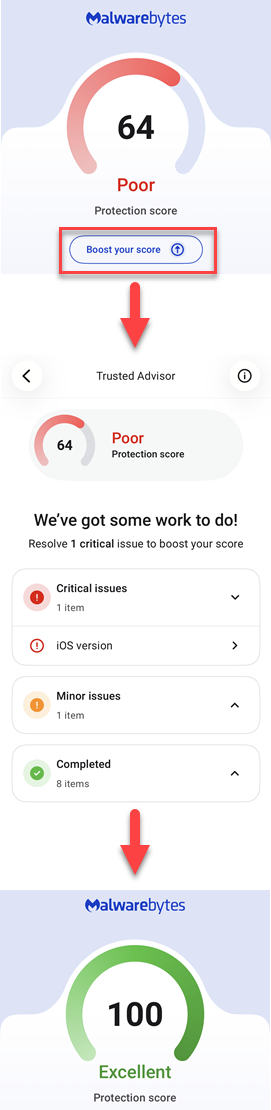
7) You can then click Boost your score to fix any remaining reported issues such as installing iOS updates or enabling any recommended security settings.
You can also click to ignore any issues which are not relevant to you
Reactivating an existing installation
1) Open Malwarebytes - Mobile Security by tapping the icon on your home / app screen
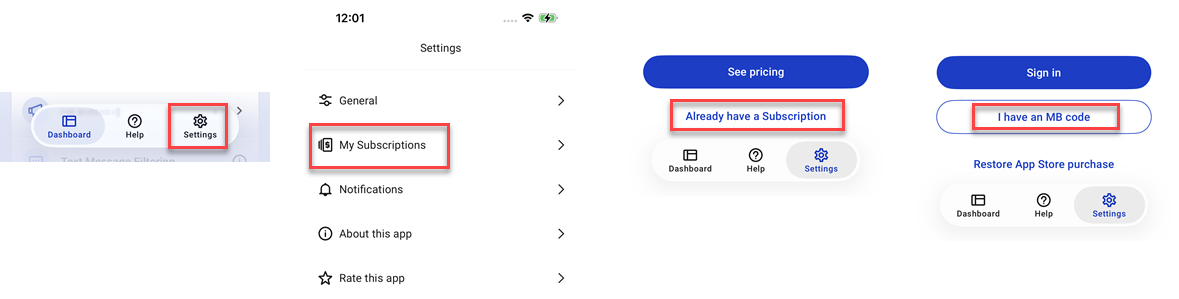
2) Click Settings > My Subscriptions > Already have a Subscription > I have an MB code
N.B. If you are renewing before existing subscription has expired then click Deactivate > Deactivate and then continue above steps
3) On the next screen you need to enter your MB Code
To obtain this code open Malwarebytes on your computer, click My subscription down left hand side, click Add device +, click iOS, click Next, and you will see your activation code, enter the code shown in the box below and click Activate
4) The main Malwarebytes interface will be shown as below
More details can be found on Malwarebytes website here
