The instructions below will help you to transfer Photos (or other content) from an Android phone to your computer.
N.B. These instructions are based on a Galaxy mobile phone so may vary slightly with different makes of phone.
1) Connect the phone to the computer using a suitable USB cable.
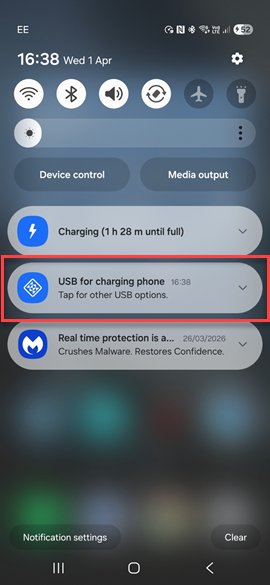
2) You will then see a prompt appear on the phone as below indicating it is charging - tap on this message.
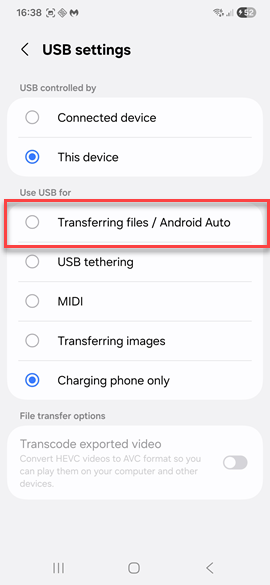
3) Select the Transferring files option and if prompted enter your phone password to proceed.
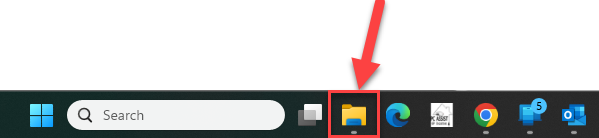
4) On your computer you can now open File Explorer - the icon for which is on the Taskbar at the bottom of your screen as indicated by screenshot below.
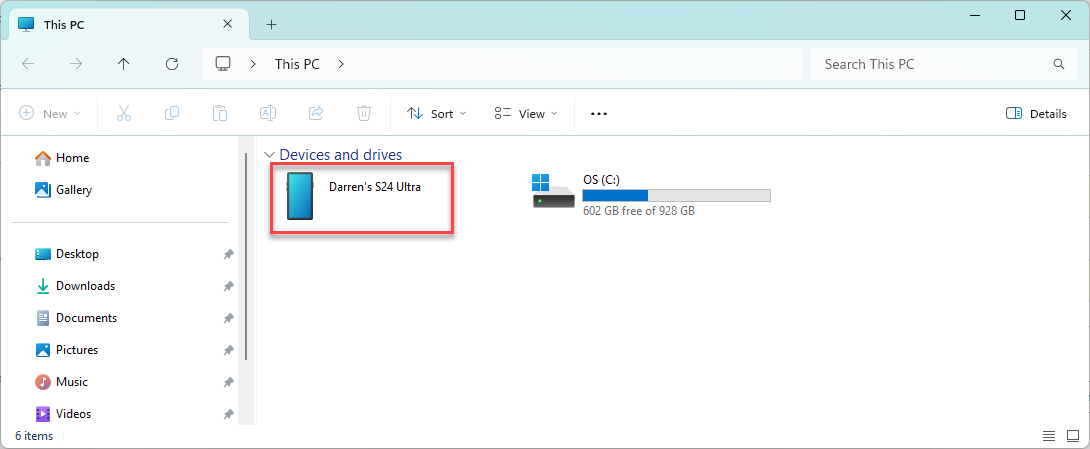
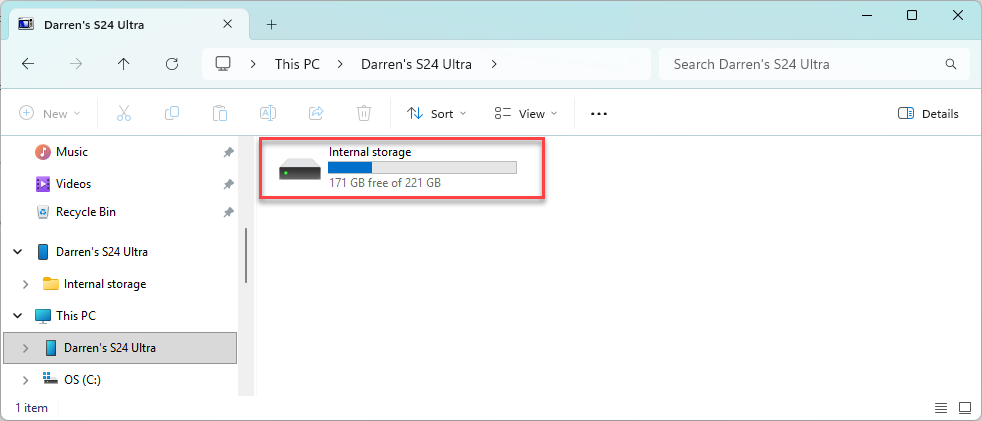
5) Once File Explorer is open you will see your connected phone - double click on it.
6) The next screen shows you the internal storage of the connected phone - double click on it.
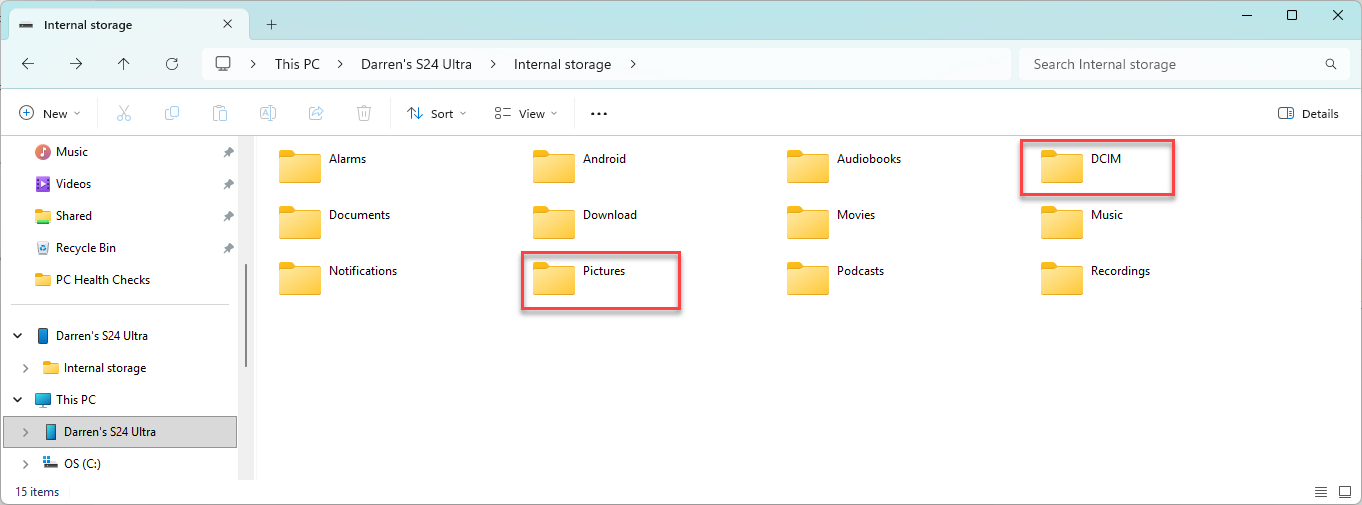
7) Your photos will then be found in either the DCIM folder (if taken using the camera on the phone) or Pictures (if pictures emailed to you or accessed on apps / websites such as Facebook)
8) You can then copy the files from the phone to your computer using Copy / Paste or Drag / Drop as covered in more detail here.
