When purchasing a new computer whether it be desktop, laptop or tablet there are certain components which define the performance and usability of the machine.
Below is an explanation of these components.
|

Processor (CPU)
|
The processor is the brain of the computer, responsible for processing instructions and performing tasks. It communicates with the various hardware and software components within the system and has a major impact on overall performance.
Choosing the right processor is important, as it is one of the primary factors affecting the speed and responsiveness of a computer. Selecting a processor with insufficient performance for your requirements may result in a slower user experience, particularly when running multiple applications or performing demanding tasks.
There are two main processor manufacturers, Intel and AMD. Both produce a wide range of processors, from entry-level models designed for basic tasks through to high-performance processors intended for content creation, professional workloads, and gaming.
Recommended:-
Basic use (web browsing, email): Intel Core i3 or AMD Ryzen 3 General use (most home and business users): Intel Core i5 / Core Ultra 5 or AMD Ryzen 5 High performance (gaming, photo / video editing, heavy workloads): Intel Core i7 / Core Ultra 7 or AMD Ryzen 7 (or higher)
Avoid:-
Intel Celeron, Intel Pentium, and Intel Processor N-series (These are budget processors and may struggle with multitasking or heavier applications)
|
Memory (RAM)
|
RAM (Random Access Memory) is the temporary working memory of a computer, where data is stored while programs are running. The more RAM a computer has, the more tasks it can handle at the same time without slowing down.
Having more RAM helps the computer run more smoothly, especially when using multiple applications or working with larger files
Recommended:-
4 GB minimum (suitable only for very basic use such as web browsing and email)
8 GB recommended (good for most home and business users)
16 GB or more (ideal for heavy use such as gaming, video editing, or running multiple demanding applications)
|
Storage (HDD / SSD)
|
This is the part of the computer where all your files, documents, and programs are stored. The larger the storage, the more data you can save on your computer.
There are two main types of storage used in computers:
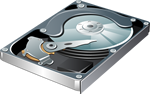
HDD (Hard Disk Drive) - A traditional mechanical drive with moving parts that spins to read and write data. HDDs are generally cheaper and available in larger sizes, typically from a few hundred GB to several TB. However, they are slower than modern alternatives, which can affect how quickly your computer starts and loads programs.
SSD (Solid State Drive) - A modern type of storage with no moving parts. SSDs are much faster than HDDs, meaning your computer will start up quicker, programs will load faster, and overall performance will feel more responsive. They are now standard in most modern computers.
Some computers may include both types of storage: an SSD for Windows and programs (for speed), and an HDD for extra file storage.
See more information here explaining the differences between these two types of drive.
SSD storage wherever possible – significantly faster and recommended for all modern computers
Minimum 256 GB SSD – suitable for basic use
512 GB or more SSD – recommended for most users
1 TB or more SSD (or HDD if an additional drive) – recommended for users with large files such as photos, videos, or backups
Avoid:-
eMMC storage (found in very low-cost devices and significantly slower than SSDs)
|
Graphics Card
|
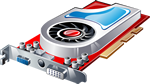
Component that handles all areas relating to graphics and video output to the monitor.
Most computers have an "onboard/shared" graphics card, this is part of the motherboard (main circuit board in the computer) and is fine for most uses of a computer, but if you intend to use your computer for gaming or other graphic intensive tasks such as photo / video editing then look for a computer that has a "dedicated" graphics card installed.
|
Monitor / Screen
|
Screen size is also something to consider. Most modern laptops come with smaller screen sizes e.g. 14" rather than 15.6" which was more common in the past. Whilst this makes the laptop lighter and more portable it can for some make viewing text on the screen more difficult, so I would suggest looking in store at the various sizes first when purchasing a new laptop.
For a desktop computer then the bigger the better, depending on available desk space of course, but a larger screen will allow you to view photos/videos in a much clearer resolution and at full size, and will make using multiple applications at once easier.
N.B. Screen size is measured diagonally (e.g. from corner to corner) not horizontally.
|
CD/DVD Drive
|
Allows you to insert CD or DVD disks to install programs, view photos and also to use blank disks to back up your data.
It is worth noting that most computers DO NOT come with CD/DVD drives now - this is mainly because most people use USB memory sticks and hard drives instead, and the majority of software, music and videos are downloadable nowadays rather than being supplied on a CD/DVD.
If you do need a CD/DVD drive for a device which doesn't come with one fitted internally, then you can purchase an external drive which would connect via USB.
|